Trash
Restoring deleted templates is a Premium feature. Upgrade your account
Briskine keeps your recently deleted templates in the trash, so you can restore them if you deleted something by mistake.
Templates in the trash can no longer be inserted. They're removed from your template list and from the Briskine Dialog, and stay in the trash until you restore them.
Open the trash
Open the Briskine Dashboard and press Trash at the bottom of the sidebar.
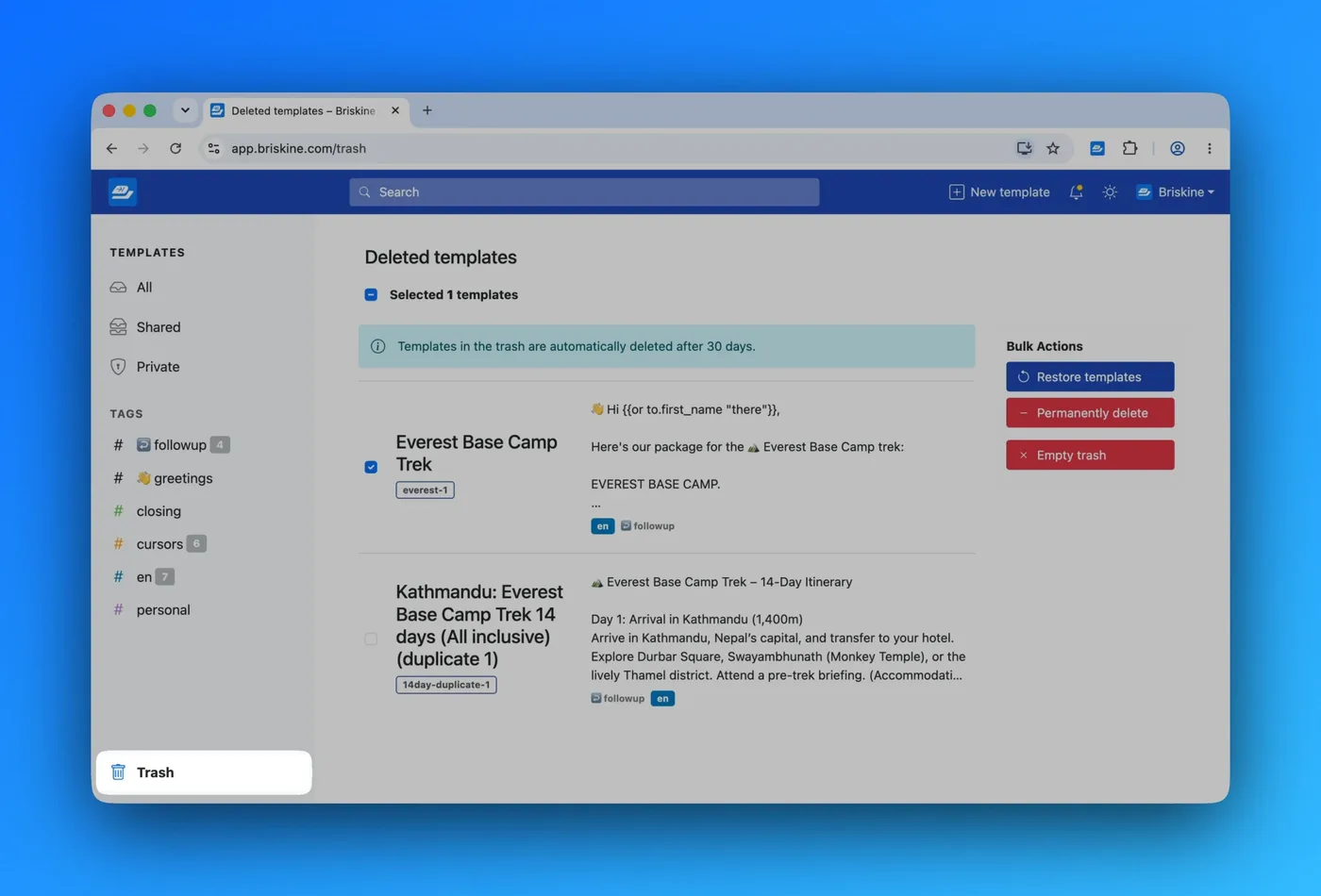
The Deleted templates page lists everything you've deleted, with the most recently deleted templates first.
View a deleted template
Press any template in the trash to see all of its details, the same way you would for any other template.
To edit a template that's in the trash, you'll need to restore it first.
The Deleted on date, in the panel next to the template, shows when the template was deleted.
Restore templates
Restoring brings a template back exactly as it was, together with its shortcut, tags, and sharing settings. It becomes available for insertion again right away.
To restore a single template, open it from the trash and press Restore templates.
To restore several templates at once:
- Select the templates you want to restore, using the checkboxes in the list. You can also use Select all at the top of the page.
- Press Restore templates under Bulk Actions.
- Confirm by pressing Restore.
Permanently delete templates
If you're sure you don't need a template anymore, you can permanently delete it at any time.
To permanently delete a single template, open it from the trash and press Permanently delete.
To permanently delete several templates at once, select them in the list, press Permanently delete under Bulk Actions, then confirm.
Empty the trash
To remove everything from the trash at once, press Empty trash, then confirm.
This permanently deletes every template in your trash, including the ones on the other pages of the list.
Templates you permanently delete, or remove by emptying the trash, cannot be recovered.
Automatic deletion
Templates in the trash are only kept for 30 days. After that, they're permanently deleted automatically.
If you need a deleted template back, make sure to restore it before those 30 days are up.
Trash and teams
Everyone on the team has their own trash, and it only contains the templates they created.
If you delete a template that another team member created and shared with you (with editing permissions), it moves to their trash. To get it back, ask them to restore it.
The same applies the other way around. If someone else on the team deletes a template you created, it shows up in your trash, and you can restore it from there.